How it works
- In the portal, open your listing and go to Photos.
- Tap 🛋 on a photo of an empty room.
- Choose the room type and the style.
- The AI stages the room and an automatic check confirms nothing fixed changed.
- The labeled photo is added next to the original.
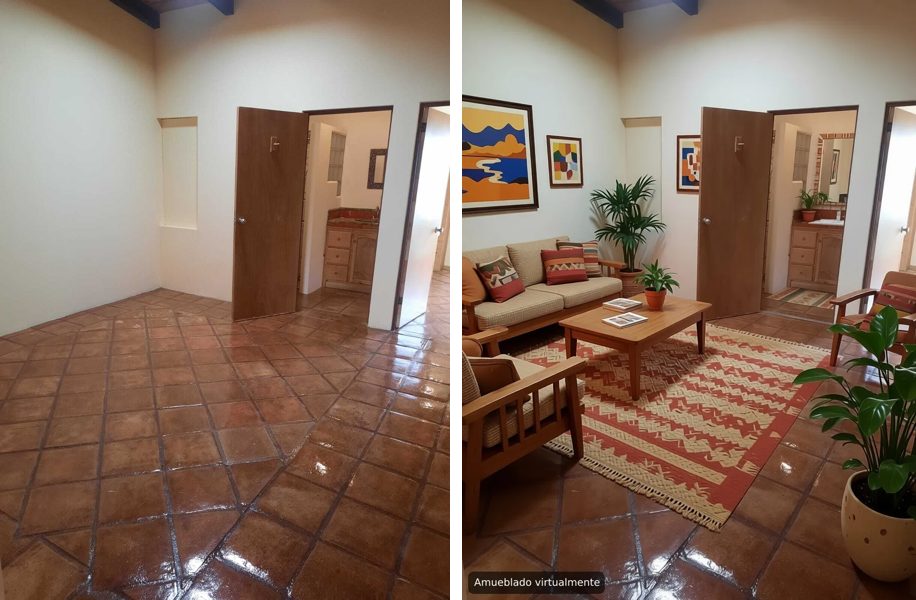
Multilistado's AI virtual staging furnishes photos of empty rooms in your listing with one button, without paying a designer or a virtual staging service. Pick the room type and style, the AI adds the furniture, and an automatic check compares the staged photo with the original: if the floor, walls, doors, windows or any fixed part of the home changed, the photo isn't published. It's free for agents with a verified license, up to 30 photos a day.
What it does
- Furnishes empty rooms. Living room, bedroom, dining room, study or home office, and patio or terrace.
- In four styles. Modern, contemporary Mexican, coastal / beach and minimalist.
- Leaves the home alone. Before staging, the AI lists the room's fixed features (doors, windows, niches, beams, light fixtures, floor type) so they're kept. Afterward, an automatic check compares the original and staged photos. If anything permanent changed, it tries once more, more conservatively; if that fails too, it doesn't add the photo and tells you.
- Always labeled. Every staged photo has a "Virtually staged" label burned into the corner ("Amueblado virtualmente" if you use the portal in Spanish), so nobody mistakes it for the room's current condition.
- Never replaces the original. The staged photo is added next to the original; both stay on your listing.
- Buyers can compare. In the full-size photo viewer, buyers tap See it unfurnished to view the original shot of the same room, and See it virtually staged to switch back.
How it works
- Log in to the portal, open your listing and go to Photos.
- On a photo of an empty room, tap the 🛋 (stage) button.
- Choose the room type and style, then confirm.
- Staging runs in the background. When it's done, the new photo shows up next to the original with a "staged" badge.
- Review it. If you don't like it, delete it like any other photo and try a different style.
Why it helps you sell or rent
An empty room looks smaller and colder in photos than it is in person, and buyers struggle to picture what fits. A staged version helps:
- Each room's purpose is clear. Especially studies, terraces and oddly shaped living rooms.
- Scale is easier to read. A bed or a dining table gives a sense of real size.
- No bait and switch. Because the original stays on the listing and the staged shot is labeled, buyers know exactly what they're looking at. They show up expecting an empty room, not the furniture in the photo.
Which photos work best
- Empty rooms. That's what it's built for; it isn't meant for rooms that already have furniture.
- Well-lit, level photos taken from a corner, with the floor visible.
- One room per photo. If a shot shows both living and dining areas, pick the main use.
If a photo is rejected because the AI changed fixed features, try another shot of the same room or a different style.
Limits and requirements
- Free for agents with a verified license (sign up free).
- Up to 30 staged photos per day per agent.
- A photo that's already staged can't be staged again.
- The stage button appears on unprocessed photos. If you also want to enhance the photo, stage the original first, then enhance whichever photos need it.
Tips
- Upload photos from your iPhone with the free agents app and stage them from the Portal tab without switching apps.
- Stage only the key rooms (living room, primary bedroom) and leave the rest as is.
- Use the same style throughout the property so the listing feels consistent.
- Let the owner know you're using virtually staged photos and show them the result.
Frequently asked questions
Does virtual staging cost anything?
No. It's free for agents with a verified license, up to 30 staged photos per day.
Is the original photo removed?
No. The staged photo is added next to the original, and buyers can tap See it unfurnished to view the room as it is.
What if the AI changes the floor or windows?
An automatic check compares both photos. If a fixed feature changed, it tries once more; if it fails again, the photo isn't added and you're notified.
Does it work on furnished rooms?
No. It's built for empty rooms, not for rooms that already have furniture.
Will buyers know the photo is virtually staged?
Yes. Each photo has a burned-in Virtually staged label, and the photo viewer offers a view of the room without furniture.